What is eating your disk?
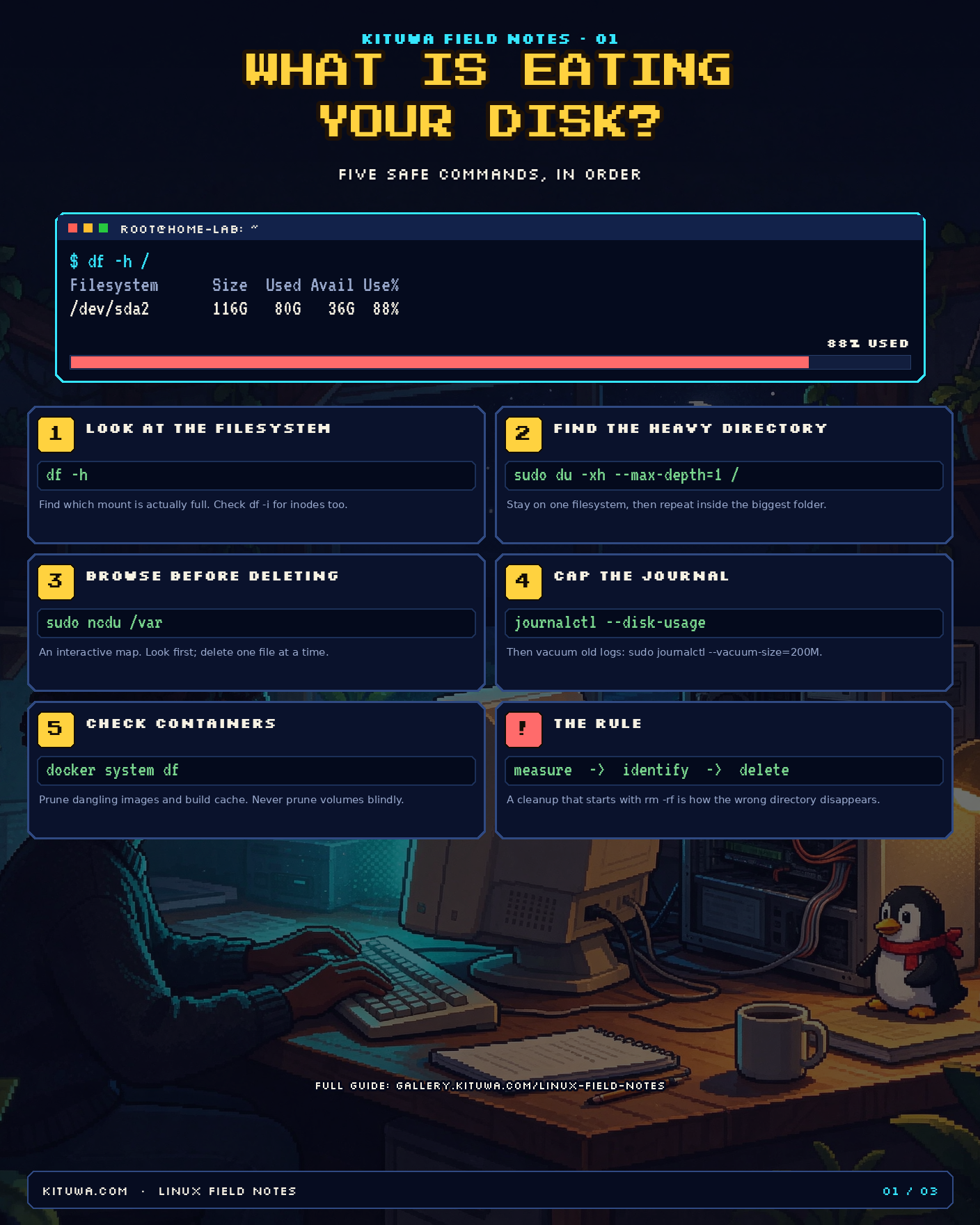
A full disk rarely announces itself politely. You get No space left on device, a database stops accepting writes, a service restarts in a loop, or the desktop refuses to save a file. The instinct is to start deleting things. Do not. Measure first.
The commands below are ordered from safest and broadest to most specific. None of them delete anything until you explicitly choose to.
1. Look at the filesystem, not a folder
df -h
df reports each mounted filesystem, its size, used space, available space, and mount point. The Use% column is the one that matters. A common mistake is checking du on / while the actual full filesystem is /var or a separate Docker volume. df shows the truth.
If Use% is high but the size looks small, check inodes:
df -i
A filesystem can run out of inodes while still showing free bytes. Millions of tiny files, session files, or mail queues can do this.
2. Find the heavy directory
sudo du -xh --max-depth=1 / 2>/dev/null | sort -h
-xstays on one filesystem, so mounted disks are not counted twice.--max-depth=1gives one level below/.sort -hputs the biggest numbers last.
Pick the largest directory and repeat the command inside it. Three or four rounds usually find the culprit:
sudo du -xh --max-depth=1 /var 2>/dev/null | sort -h
sudo du -xh --max-depth=1 /var/lib 2>/dev/null | sort -h
3. Browse before you delete
sudo apt install ncdu
sudo ncdu /var
ncdu is an interactive disk-usage browser. You can move through directories, sort by size, and delete individual files. Treat it as a flashlight, not a bulldozer: look first, then decide.
4. Check the journal
systemd keeps logs that can grow quietly:
journalctl --disk-usage
Vacuum only what is old, keeping a useful window:
sudo journalctl --vacuum-time=14d
Or cap the total size:
sudo journalctl --vacuum-size=200M
Both commands remove archived journal files, not the live journal. The service keeps running.
5. Check containers and images
If Docker is installed:
docker system df
This breaks usage into images, containers, local volumes, and build cache. Safe first steps:
docker image prune
docker builder prune
docker image prune removes dangling images. docker builder prune removes unused build cache. Neither removes a running container.
Be careful with docker system prune -a. It removes all unused images, including images you may want for rollback, and it can remove networks. Do not run it on a host you have not inspected. Volumes are data: docker volume prune can delete a database volume if the container is stopped.
6. Package caches and old kernels
sudo apt clean
sudo apt autoremove --purge
apt clean clears downloaded package archives. apt autoremove --purge removes packages that are no longer needed, including old kernels on Ubuntu. Review the list before confirming.
7. The hidden case: deleted files still open
A process can hold a deleted file open. The space is not returned until the process closes it:
sudo lsof +L1
Look for large SIZE/OFF values and a (deleted) path. Restart the owning service when it is safe, rather than deleting more files.
The 60-second version
df -h
df -i
sudo du -xh --max-depth=1 / 2>/dev/null | sort -h
journalctl --disk-usage
docker system df        # only if Docker is installed
sudo lsof +L1
Measure, identify, then delete. A disk cleanup that starts with rm -rf is how people lose the wrong directory.
What to do next
- Set a log cap so the journal cannot grow without limit.
- Put backups and container data on a separate volume.
- Add a simple disk check to your monitoring so you hear about 85% before it becomes 100%.
Share this
 Scan to open this page on a phone.